Step by step
INOFF screenshot with demonstration data
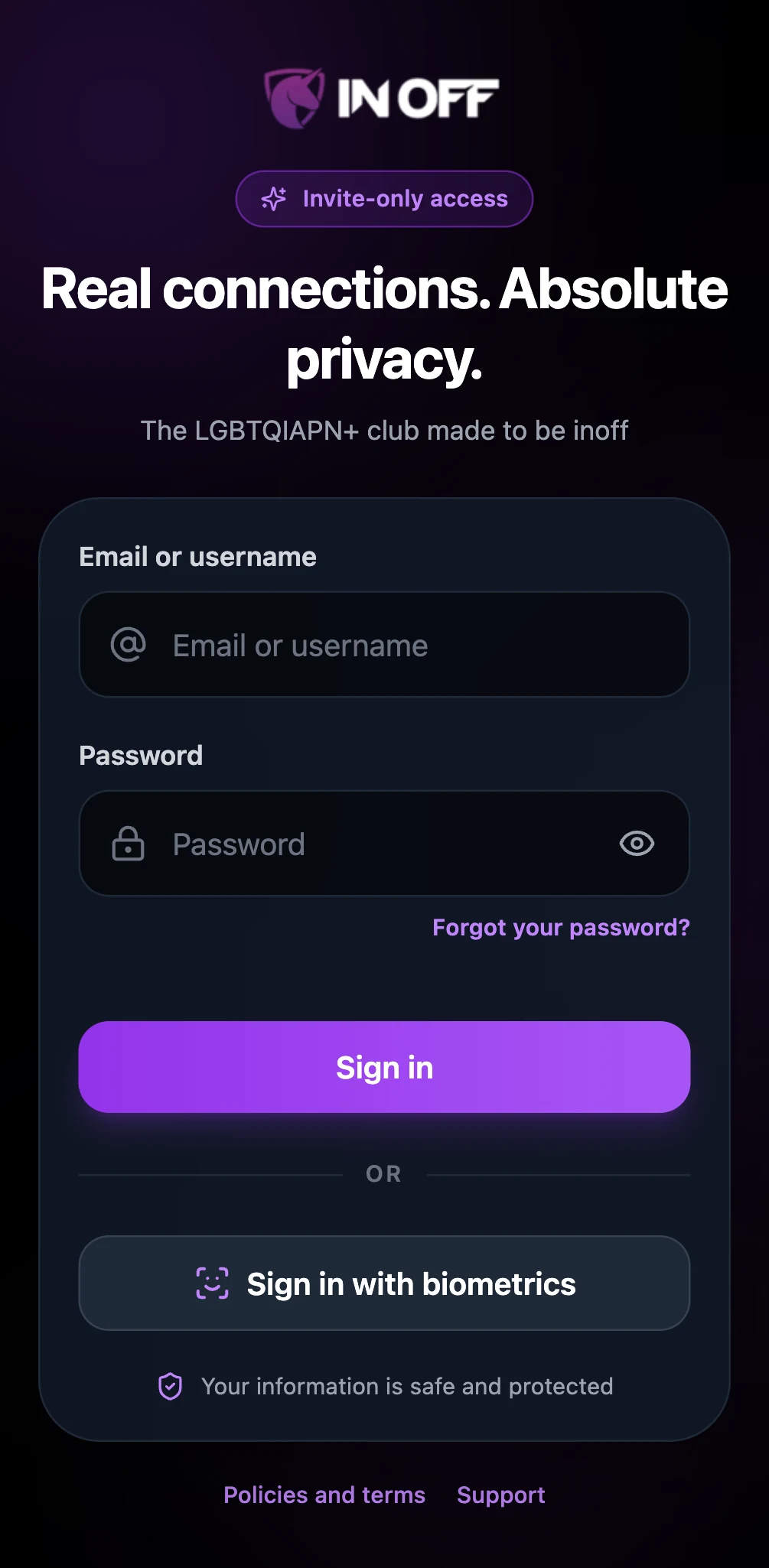
Choose how to sign in
Open the sign-in screen. Use the account fields to sign in with a password, or tap Sign in with biometrics if you have already set it up.
 Open full-size screenshot
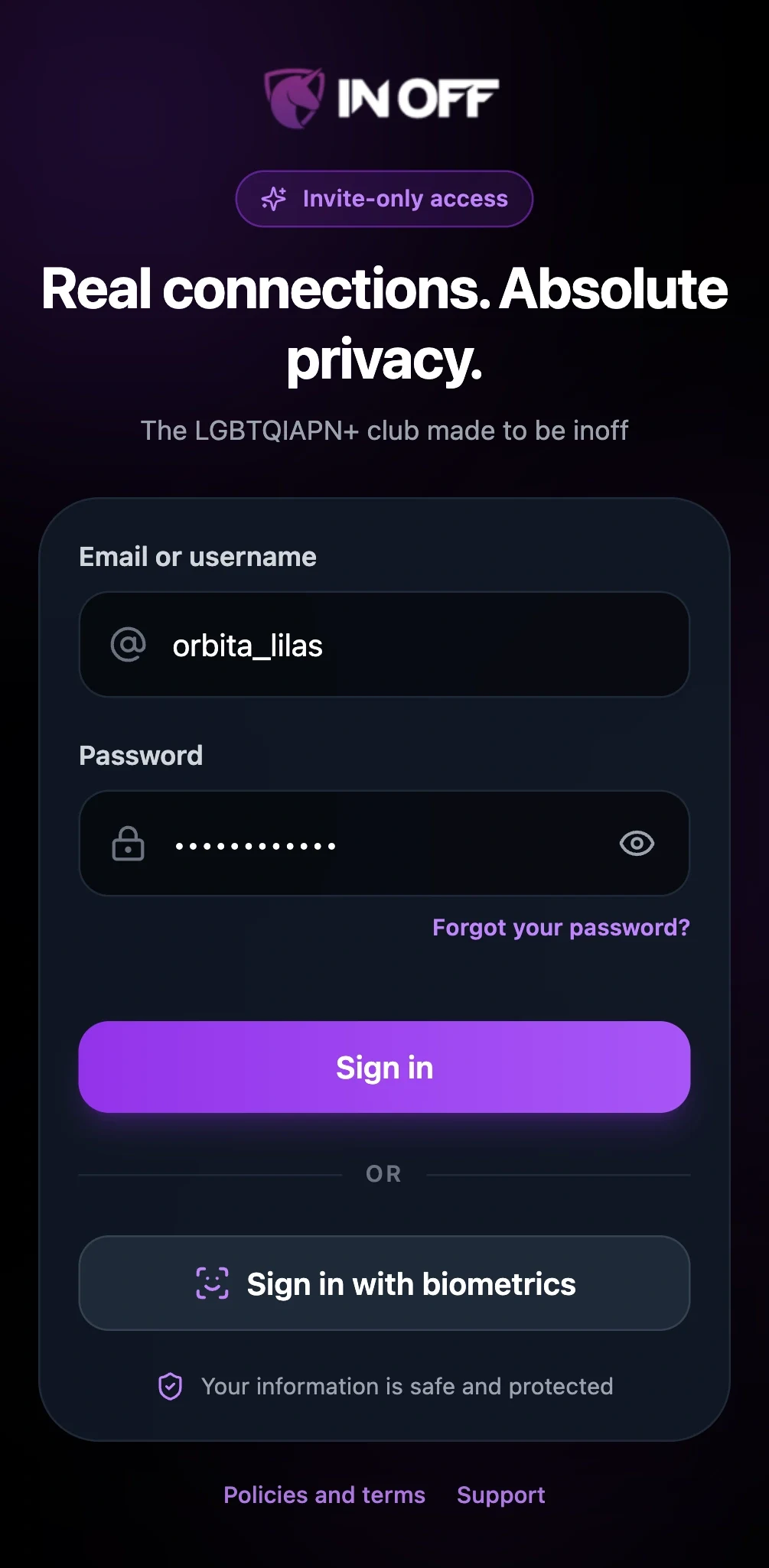
Enter your account details
Enter your email or username and your password, then tap Sign in.
 Open full-size screenshot
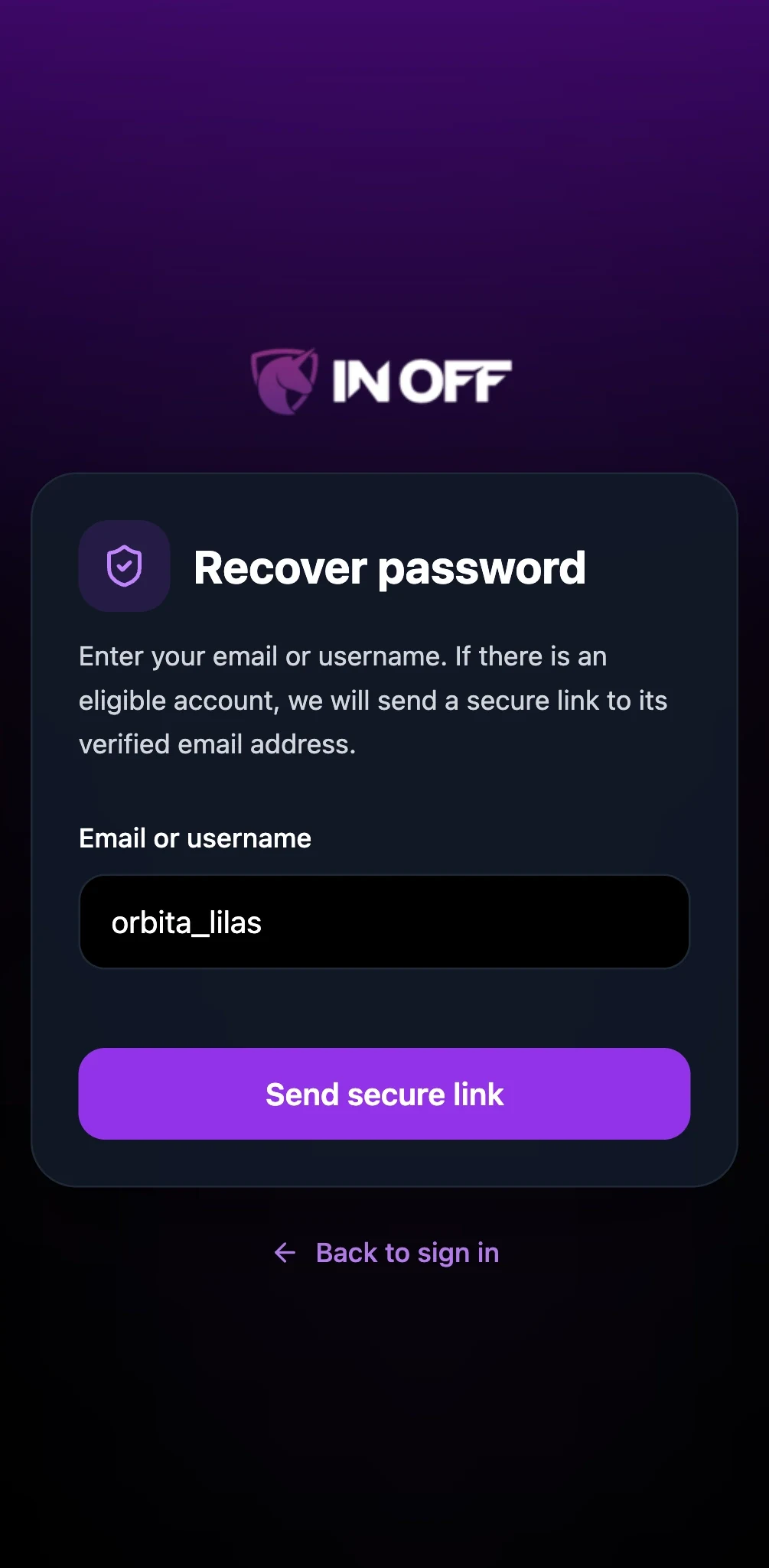
Recover your password
On the sign-in screen, tap Forgot your password? Enter your email or username and tap Send secure link.
 Open full-size screenshot
Once your application is approved, open INOFF and enter your account email or username and password. On a compatible device, Quick access also lets you sign in with biometrics or your device’s unlock method.
How do I sign in for the first time?
Enter your email or username and password, then select Sign in. Follow any verification shown on the screen. If biometrics are already set up for your account, the app may also ask you to confirm the sign-in on your device.
Do I have to set up biometrics?
Quick access setup is optional. When the app offers to set it up, choose Remind me later to continue. If you turn it on, confirm setup on your device. Quick access uses a passkey associated with your account.
What if I forget my password?
Choose Forgot your password? on the sign-in screen and follow the recovery instructions. Password recovery is also available on the confirmation screen if you need to regain access when biometrics are unavailable.